> ## Documentation Index
> Fetch the complete documentation index at: https://docs.tabby.ai/llms.txt
> Use this file to discover all available pages before exploring further.

# ExpandCart

<Note>
  Tabby works on the ExpandCart platform for the countries KSA and UAE with SAR and AED currencies accordingly.
</Note>

## Installation Steps

<Steps>
  <Step
    stepNumber={1}
    title={(
  <span>
    <a href="https://merchant.tabby.ai/">
      Register with Tabby
    </a>
    <span style={{ fontWeight: 'normal', fontSize: '0.9em' }}>
      &nbsp;(KSA: <a href="https://merchant.tabby.sa/">merchant.tabby.sa</a>)
    </span>
    <span style={{ fontWeight: 'normal' }}>
      &nbsp;and fill all the business details to collect the Tabby API Keys
    </span>
  </span>
)}
  />

  <Step
    stepNumber={2}
    title={(
  <span style={{ fontWeight: 'normal' }}>
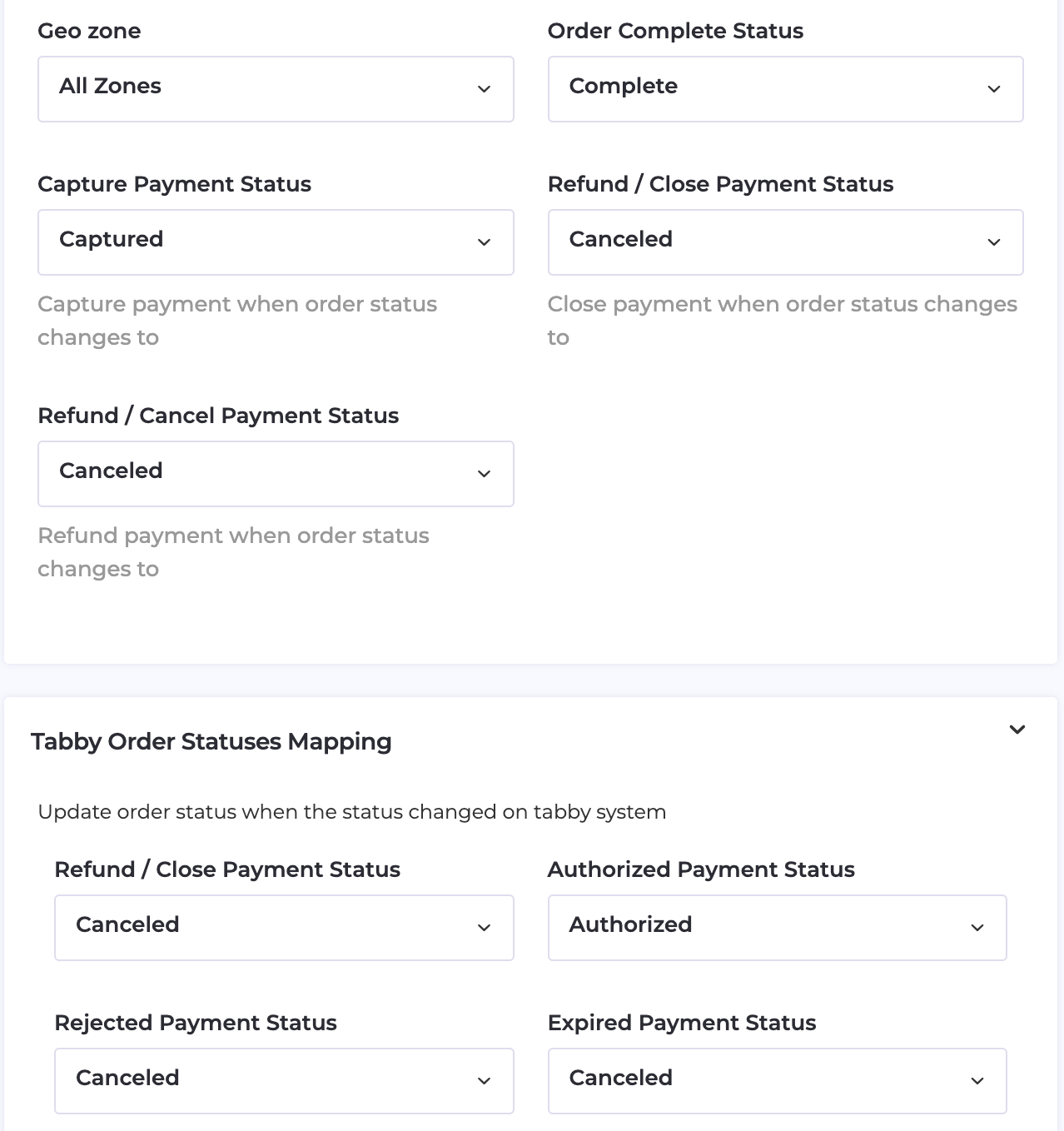
      Install Tabby App for your Expand Cart store and populate the Live keys.<br />
      You can find Tabby settings in <em>Home -<span>&gt;</span> Payment -<span>&gt;</span> Payment providers</em>.<br />
      Please, make sure you have the following settings for the proper functioning:
  </span>
)}
  />
</Steps>

<div className="product-shot-figure">
  <img className="product-shot" alt="Tabby Settings page" src="https://mintcdn.com/tabby-5f40add6/P693KbtvGHftcJLw/images/expand-card-1.png?fit=max&auto=format&n=P693KbtvGHftcJLw&q=85&s=a75b1adda292f298cb82604accbbb227" width="1278" height="1358" data-path="images/expand-card-1.png" />

  <p className="product-shot-caption">Tabby Settings page</p>
</div>

<Steps>
  <Step
    stepNumber={3}
    title={(
  <span style={{ fontWeight: 'normal' }}>
    Your store is ready to accept Payments with Tabby.
  </span>
)}
  />
</Steps>