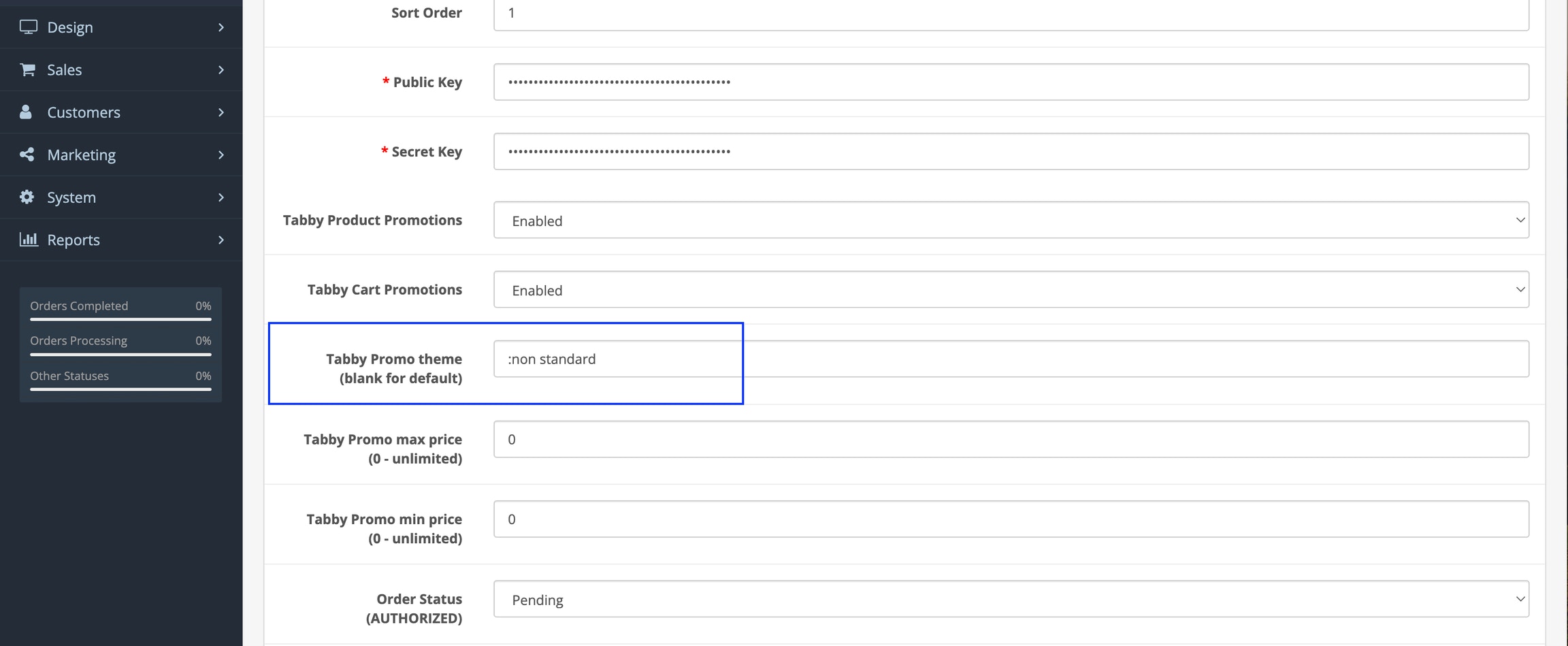
Promotions theme
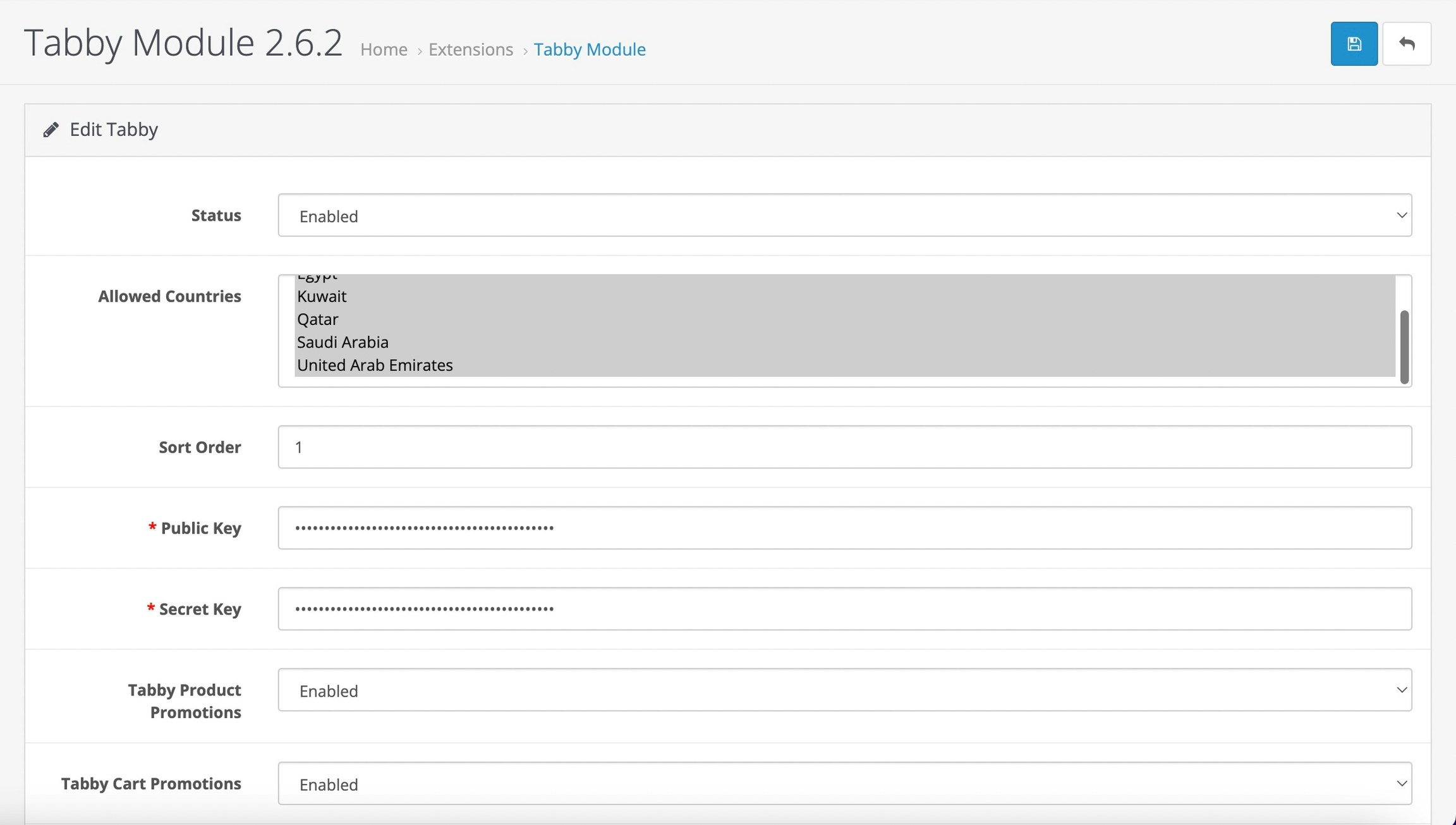
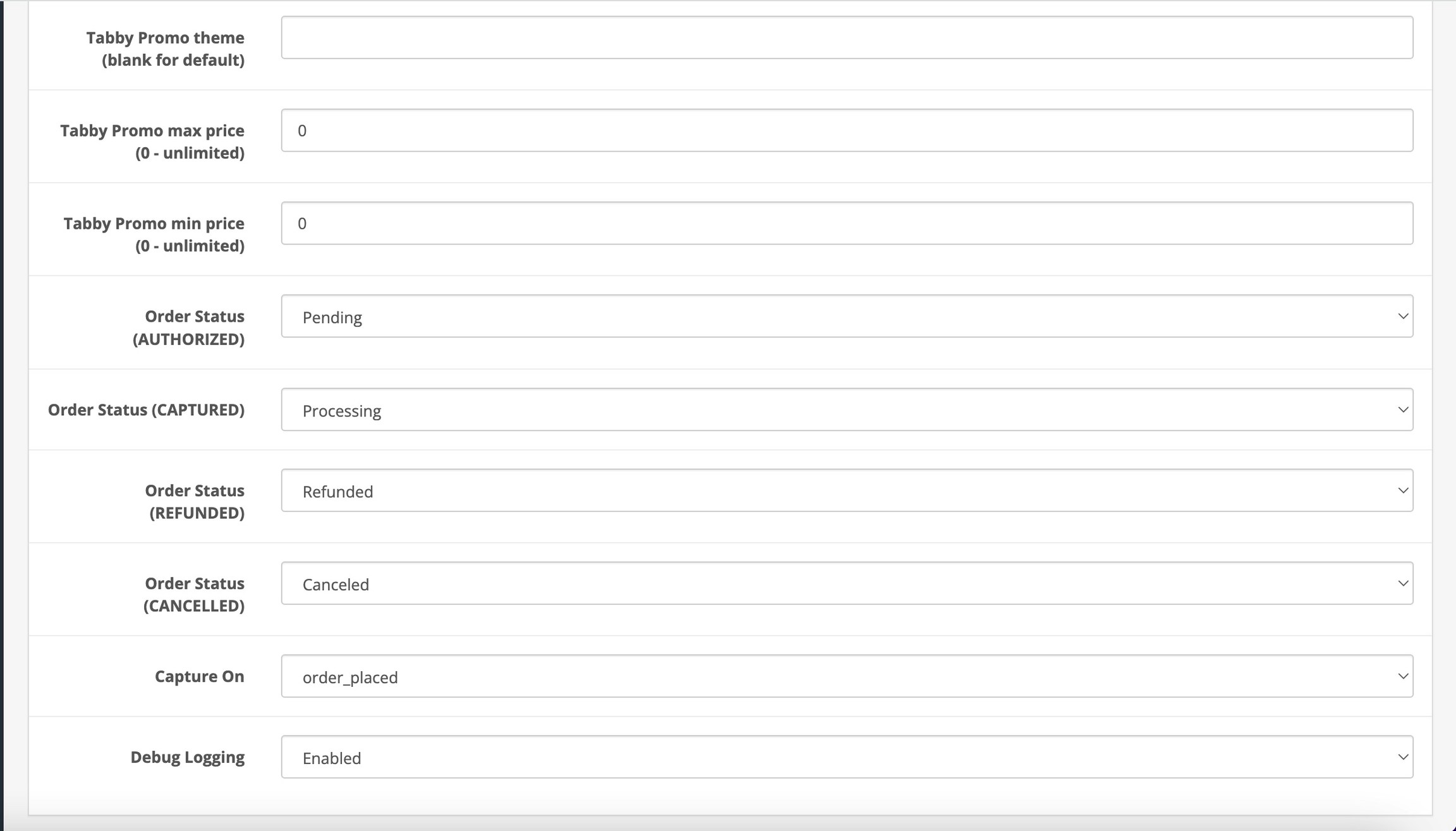 #### Optional: Updating the OpenCart Extension
When you want to update your current version with the new one.
1. Go to ***Extensions -> Modifications*** and delete the Tabby payment
2. Go to ***Extensions -> Installer*** and delete all files named oc3-tabby-x.x.x.ocmod.zip from install history
3. Upload and install the extension
4. Go to ***Extensions -> Modifications*** and click the refresh button under your profile (without reloading the page in the browser)
5. Check the Tabby payment in the modification list;
6. Go to ***Extensions -> Extensions -> Modules*** in your Opencart admin panel and activate Tabby Module
7. Open **Tabby Module** settings and click on Save changes button
### Configure Tabby as a Payment Method
1. Go to ***Extensions -> Extensions -> Modules*** in your OpenCart admin panel, find Tabby Module, click "Edit" and enter the **Public API Key** and **Secret API Key** for testing.
2. Go to ***Extensions -> Extensions -> Payments*** in your OpenCart admin panel and enable Tabby Installments (Split in 4).
3. Make sure the following settings are configured in any Tabby option Installments: – **Capture on – order\_placed**
4. Go to ***Design -> Layouts -> Checkout*** and add Tabby Module to Content Top
**For Journal theme only:** Go to Journal → Layouts → Checkout, choose Top+, choose OpenCart (the last one) and choose Tabby Module →Tabby Checkout → Save changes.
### Test Your Integration
After completing your integration, make an order and refund it to ensure that everything works as expected.
**Coordinate Testing with Tabby**
Before deploying Tabby integration to your production site, Tabby needs to validate the correctness of the integration. Contact your account manager to coordinate this test.
### Connect to live Tabby environment
1. Get your public and secret keys for the live environment. Ask you account manager to share the keys.
2. Set your live public and secret keys in the OpenCart admin panel, for this go to ***Extensions -> Extensions -> Modules -> Tabby Module*** in your OpenCart admin panel.
3. **Launch to Production**
#### Optional: Updating the OpenCart Extension
When you want to update your current version with the new one.
1. Go to ***Extensions -> Modifications*** and delete the Tabby payment
2. Go to ***Extensions -> Installer*** and delete all files named oc3-tabby-x.x.x.ocmod.zip from install history
3. Upload and install the extension
4. Go to ***Extensions -> Modifications*** and click the refresh button under your profile (without reloading the page in the browser)
5. Check the Tabby payment in the modification list;
6. Go to ***Extensions -> Extensions -> Modules*** in your Opencart admin panel and activate Tabby Module
7. Open **Tabby Module** settings and click on Save changes button
### Configure Tabby as a Payment Method
1. Go to ***Extensions -> Extensions -> Modules*** in your OpenCart admin panel, find Tabby Module, click "Edit" and enter the **Public API Key** and **Secret API Key** for testing.
2. Go to ***Extensions -> Extensions -> Payments*** in your OpenCart admin panel and enable Tabby Installments (Split in 4).
3. Make sure the following settings are configured in any Tabby option Installments: – **Capture on – order\_placed**
4. Go to ***Design -> Layouts -> Checkout*** and add Tabby Module to Content Top
**For Journal theme only:** Go to Journal → Layouts → Checkout, choose Top+, choose OpenCart (the last one) and choose Tabby Module →Tabby Checkout → Save changes.
### Test Your Integration
After completing your integration, make an order and refund it to ensure that everything works as expected.
**Coordinate Testing with Tabby**
Before deploying Tabby integration to your production site, Tabby needs to validate the correctness of the integration. Contact your account manager to coordinate this test.
### Connect to live Tabby environment
1. Get your public and secret keys for the live environment. Ask you account manager to share the keys.
2. Set your live public and secret keys in the OpenCart admin panel, for this go to ***Extensions -> Extensions -> Modules -> Tabby Module*** in your OpenCart admin panel.
3. **Launch to Production**
Promotions theme
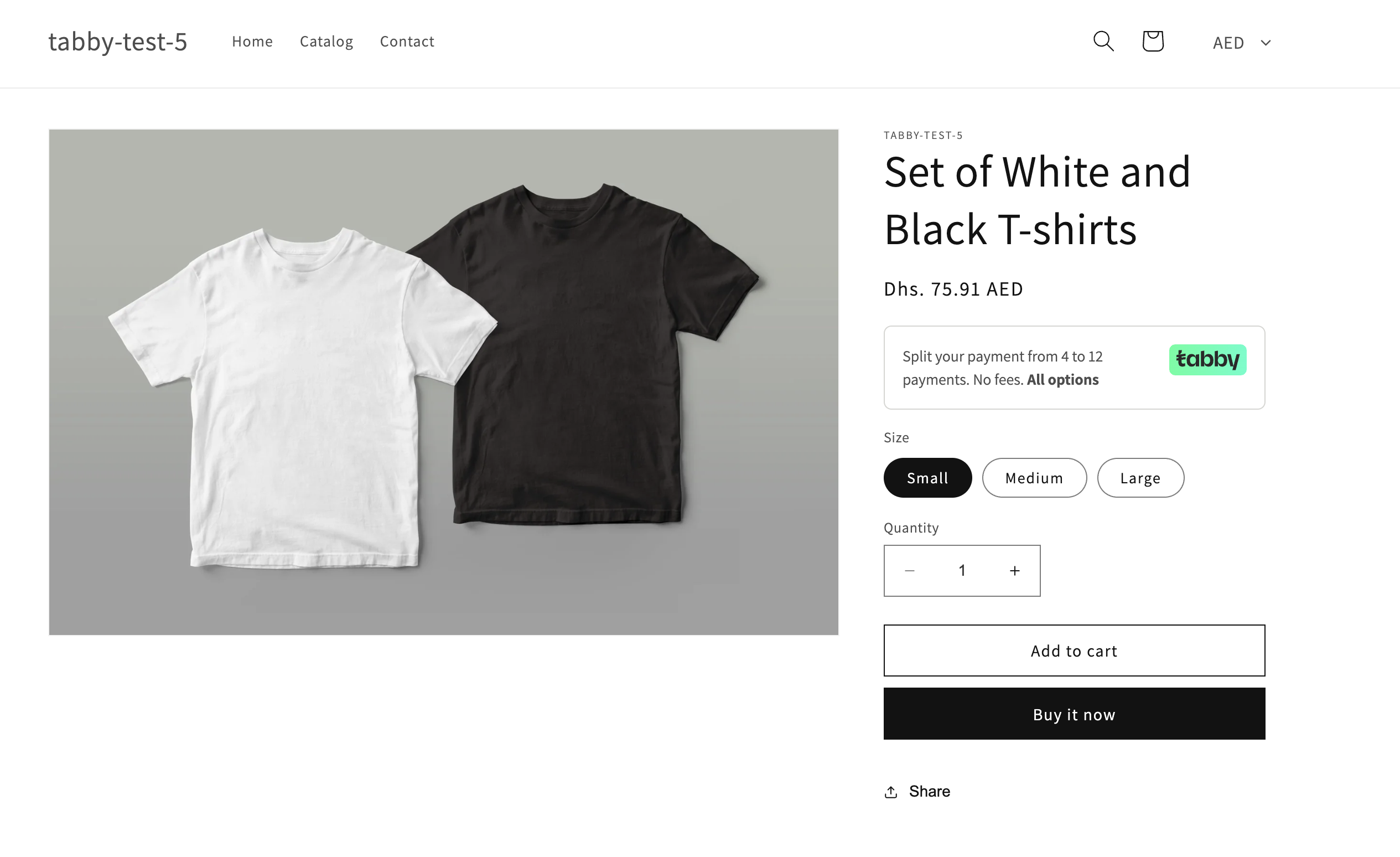
No price snippet