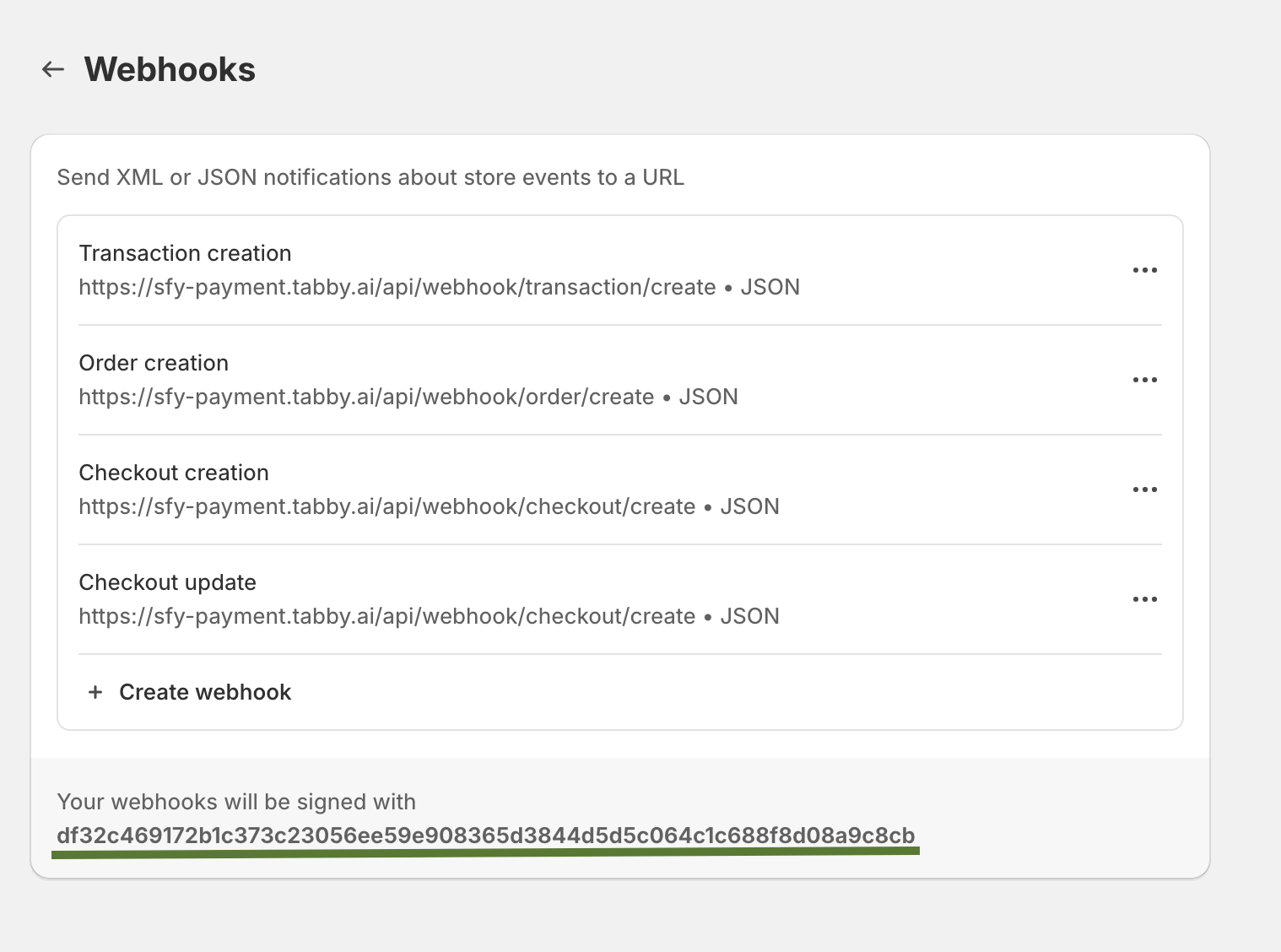
Webhook Verification Key
Webhook Verification Key
 ### Webhook API Version Update
Here **Webhook Update Demonstarion** can be reviewed:
Shopify Webhooks are created for the particular API version. Shopify releases several versions per year, so it means your initial API version settings will inevitably expire. Tabby makes the necessary changes to support the latest updated API versions, but this also requires a manual action from the partner's end.
You need to go to Settings -> Notifications -> Webhooks and choose the **latest** API version from the dropdown of a particular Tabby Webhook.
## Add Tabby Snippets
### Webhook API Version Update
Here **Webhook Update Demonstarion** can be reviewed:
Shopify Webhooks are created for the particular API version. Shopify releases several versions per year, so it means your initial API version settings will inevitably expire. Tabby makes the necessary changes to support the latest updated API versions, but this also requires a manual action from the partner's end.
You need to go to Settings -> Notifications -> Webhooks and choose the **latest** API version from the dropdown of a particular Tabby Webhook.
## Add Tabby Snippets
 ### Order Editing
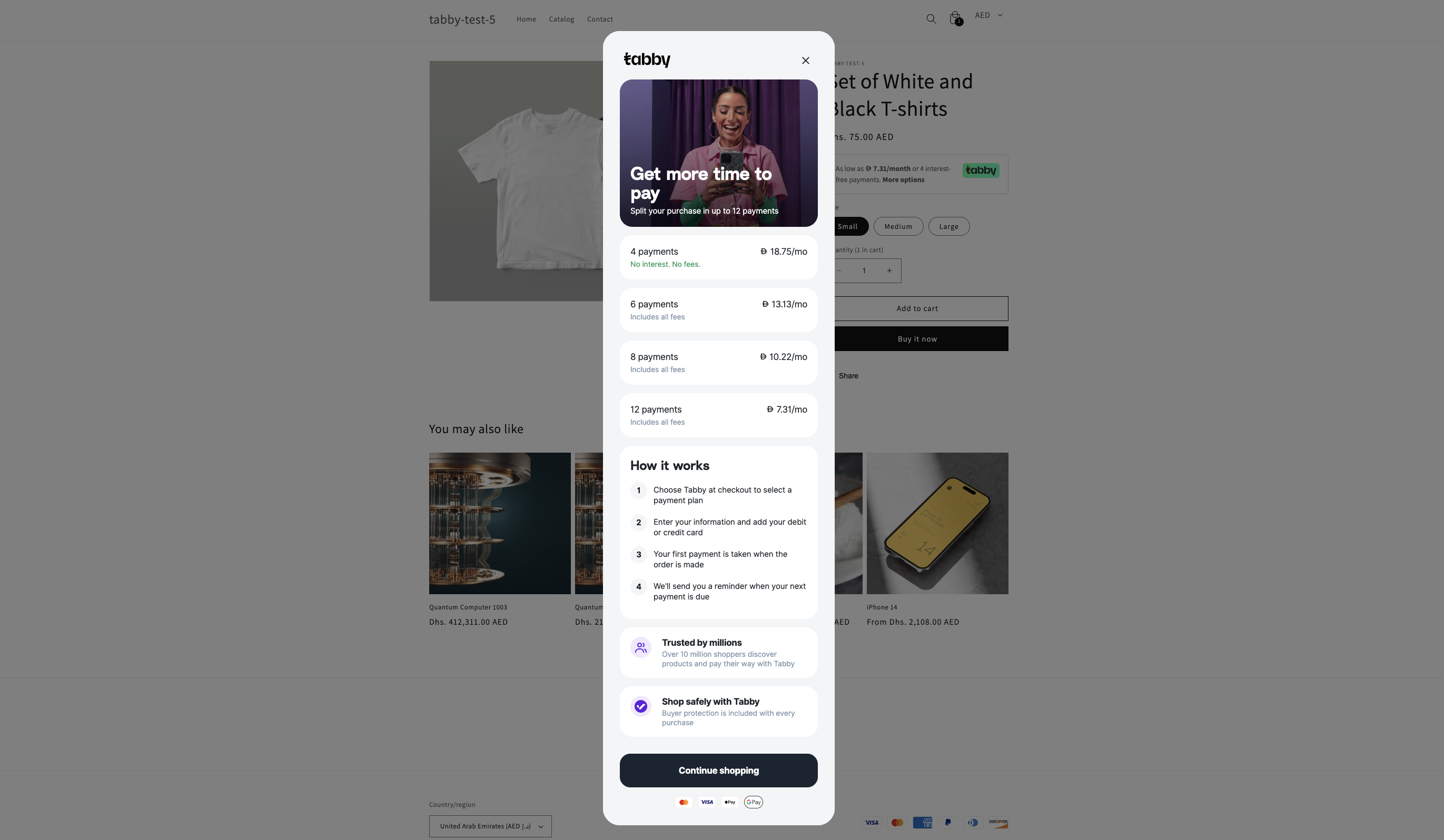
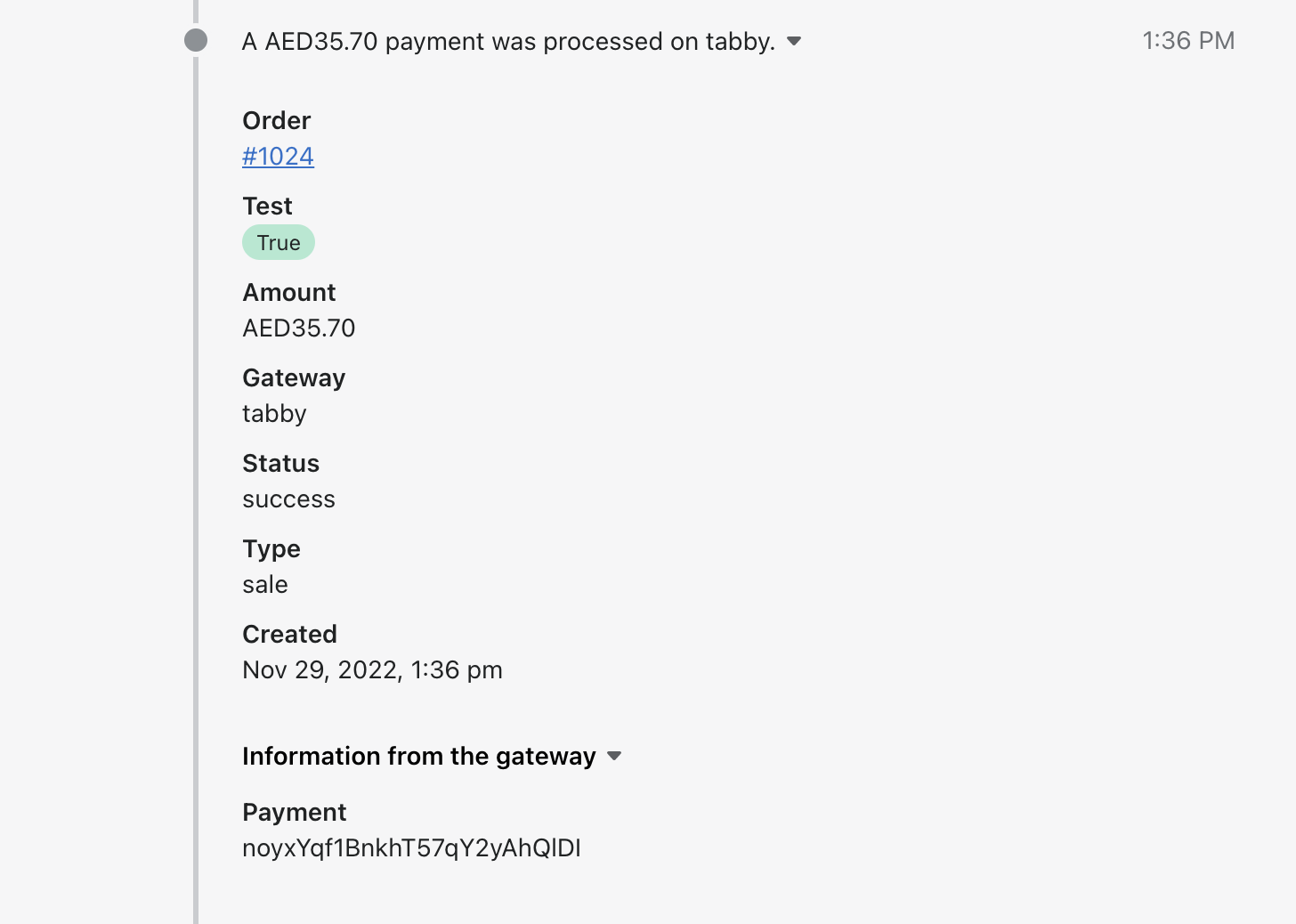
Please note that order details editing (as order lines, customer details, etc.) will be reflected in Shopify Dashboard only and will not updated for the payment on Tabby Merchant Dashboard, Customer Portal and Settlements.
### Order Lines
Shopify doesn't share order data via the Payment App and Shopify does not share any order line data for non-product order lines, e.g. VAT/taxes, discounts, surcharges, tip, etc. Tabby orders will have necessary Order Lines data after Webhook installation.
### Order Tagging
Tabby Payment App cannot currently set tags on a Shopify order. You can use the Shopify Flow app (available only for the following subscription plans - Shopify, Advanced and Shopify Plus) which can set order tags within a flow for Tabby orders.
### Promo Customizations
Customizations of Tabby payment method and (logo, footer text) are currently supported only for Shopify Plus merchants. You can use custom scripts to customize a payment methods presentation in Shopify checkout, based on available cart data. Shopify has example payment script code here. You can request **Logo and Snippets implementation** by your Tabby account manager.
### Domain Filtering
Payment App uses a different hosted payment page URL: `checkout.tabby.ai` (UAE, Kuwait) or `checkout.tabby.sa` (KSA).
Merchants that filter this domain in Google Analytics will need to update their GA configurations accordingly.
### Market Limitation
Tabby Payment App accept orders only for the billing addresses in the markets of KSA, UAE, Kuwait. Customers for non-supported regions based on the order's currency are shown an error message on page load that the Tabby order cannot be processed.
### Multi-Currency Processing and Currency Conversion
Tabby processes payments in the following currencies: SAR (SR), AED (Dhs), and KWD (KD), which must correspond to the customer's billing address. Tabby Payment App is compatible with all Shopify stores, regardless of their base currency.
If the store’s base currency differs from the customer’s billing currency, currency conversion will be applied, and the converted amount will be displayed at Tabby checkout. Customer transactions and merchant settlements will be processed in the customer’s billing currency.
Currency conversion is also applied between supported currencies if the store’s base currency differs from the customer’s billing currency.
Please note that to enable conversion, the “Enable Multi-Currency Processing” option must be selected in the Tabby settings.
### Inventory Lock Limitation and Inventory Stock Check
When a customer places an order with an alternative payment integration, such as Tabby Payment App, Shopify redirects to the payment method but does not lock the order's product inventory and thus stock inventory cannot be guaranteed. Shopify will update this functionality in the future.
However, Tabby can check inventory immediately after payment is completed but before the order is created in Shopify. If an item goes out of stock during the payment process, the funds will be refunded to the customer, and the Shopify order will not be created.
To enable this functionality, please turn on the **Check Inventory Stock** feature in Tabby settings in your Shopify admin panel.
Note that this feature only works when the following settings are applied to your products in Shopify settings:
* **Inventory tracking** is enabled
* **Continue selling when out of stock** setting is disabled
### Additional Request of the Phone Number
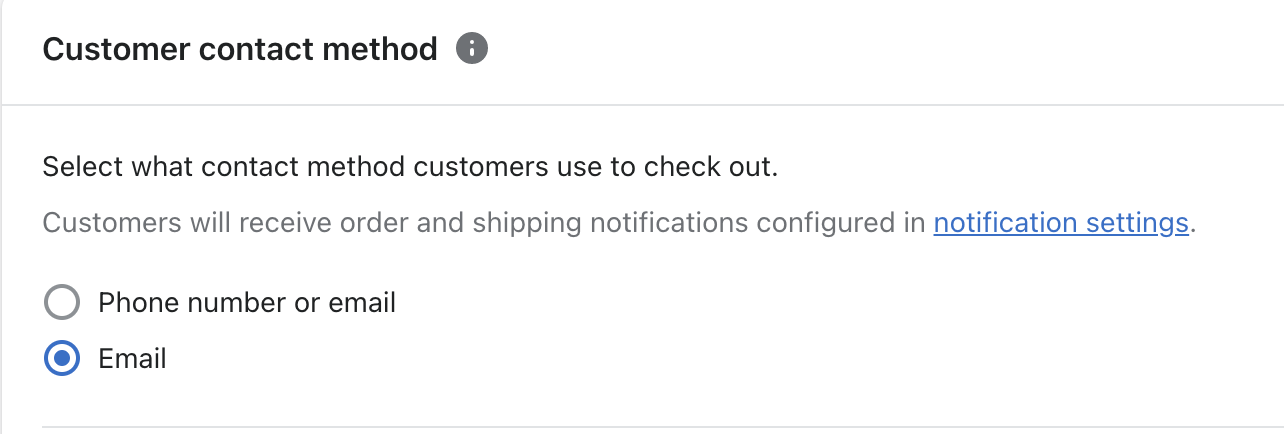
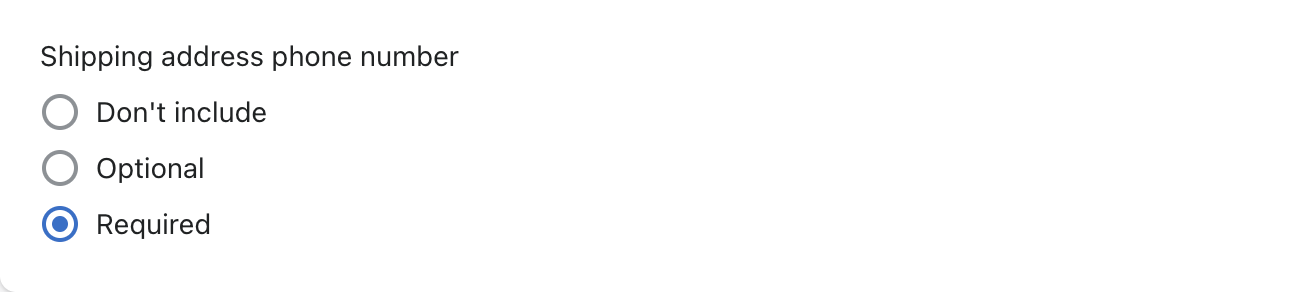
Even if customers already previously entered their phone number in Shopify checkout, Shopify may not share that phone number with payment integrations when email is required instead of phone at the checkout, thus Tabby will ask the customers to enter the phone number again within our Hosted Payment Page.
### Payment Method Renaming Limitation
Renaming the payment method is not currently supported by Shopify, as payment providers can now configure translations for the payment method name.
### Order Editing
Please note that order details editing (as order lines, customer details, etc.) will be reflected in Shopify Dashboard only and will not updated for the payment on Tabby Merchant Dashboard, Customer Portal and Settlements.
### Order Lines
Shopify doesn't share order data via the Payment App and Shopify does not share any order line data for non-product order lines, e.g. VAT/taxes, discounts, surcharges, tip, etc. Tabby orders will have necessary Order Lines data after Webhook installation.
### Order Tagging
Tabby Payment App cannot currently set tags on a Shopify order. You can use the Shopify Flow app (available only for the following subscription plans - Shopify, Advanced and Shopify Plus) which can set order tags within a flow for Tabby orders.
### Promo Customizations
Customizations of Tabby payment method and (logo, footer text) are currently supported only for Shopify Plus merchants. You can use custom scripts to customize a payment methods presentation in Shopify checkout, based on available cart data. Shopify has example payment script code here. You can request **Logo and Snippets implementation** by your Tabby account manager.
### Domain Filtering
Payment App uses a different hosted payment page URL: `checkout.tabby.ai` (UAE, Kuwait) or `checkout.tabby.sa` (KSA).
Merchants that filter this domain in Google Analytics will need to update their GA configurations accordingly.
### Market Limitation
Tabby Payment App accept orders only for the billing addresses in the markets of KSA, UAE, Kuwait. Customers for non-supported regions based on the order's currency are shown an error message on page load that the Tabby order cannot be processed.
### Multi-Currency Processing and Currency Conversion
Tabby processes payments in the following currencies: SAR (SR), AED (Dhs), and KWD (KD), which must correspond to the customer's billing address. Tabby Payment App is compatible with all Shopify stores, regardless of their base currency.
If the store’s base currency differs from the customer’s billing currency, currency conversion will be applied, and the converted amount will be displayed at Tabby checkout. Customer transactions and merchant settlements will be processed in the customer’s billing currency.
Currency conversion is also applied between supported currencies if the store’s base currency differs from the customer’s billing currency.
Please note that to enable conversion, the “Enable Multi-Currency Processing” option must be selected in the Tabby settings.
### Inventory Lock Limitation and Inventory Stock Check
When a customer places an order with an alternative payment integration, such as Tabby Payment App, Shopify redirects to the payment method but does not lock the order's product inventory and thus stock inventory cannot be guaranteed. Shopify will update this functionality in the future.
However, Tabby can check inventory immediately after payment is completed but before the order is created in Shopify. If an item goes out of stock during the payment process, the funds will be refunded to the customer, and the Shopify order will not be created.
To enable this functionality, please turn on the **Check Inventory Stock** feature in Tabby settings in your Shopify admin panel.
Note that this feature only works when the following settings are applied to your products in Shopify settings:
* **Inventory tracking** is enabled
* **Continue selling when out of stock** setting is disabled
### Additional Request of the Phone Number
Even if customers already previously entered their phone number in Shopify checkout, Shopify may not share that phone number with payment integrations when email is required instead of phone at the checkout, thus Tabby will ask the customers to enter the phone number again within our Hosted Payment Page.
### Payment Method Renaming Limitation
Renaming the payment method is not currently supported by Shopify, as payment providers can now configure translations for the payment method name.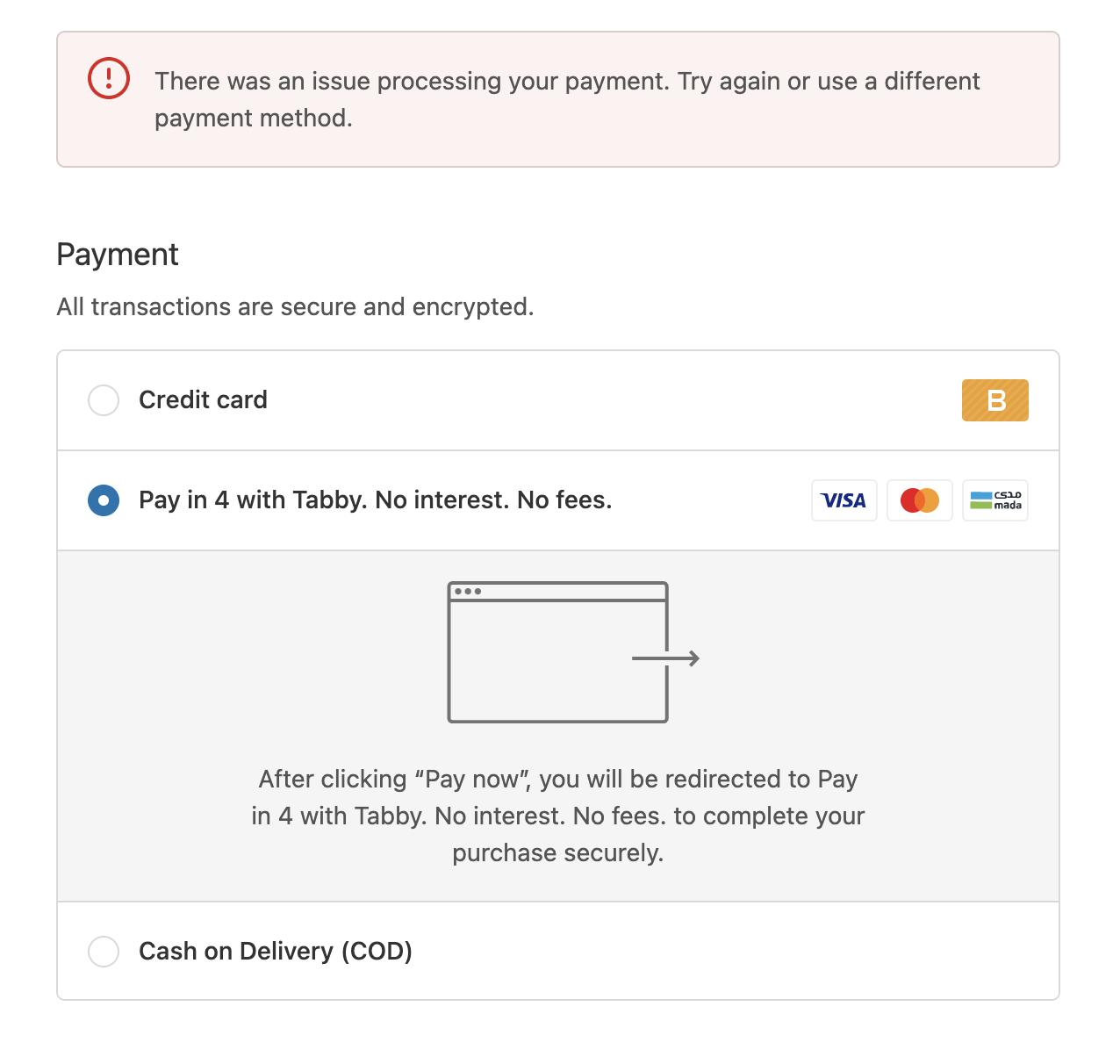 ### Redirection for Background Pre-Scoring Rejection
Tabby now redirects the customers to our internal rejection screens where we explain the reason and advise how to avoid this rejection if possible. Customers may see the general rejection explanation (can't be avoided), too high cart total and too low cart total rejections (can be skipped by adjusting the cart total).
### New Session is Required after Cancellation or Rejection
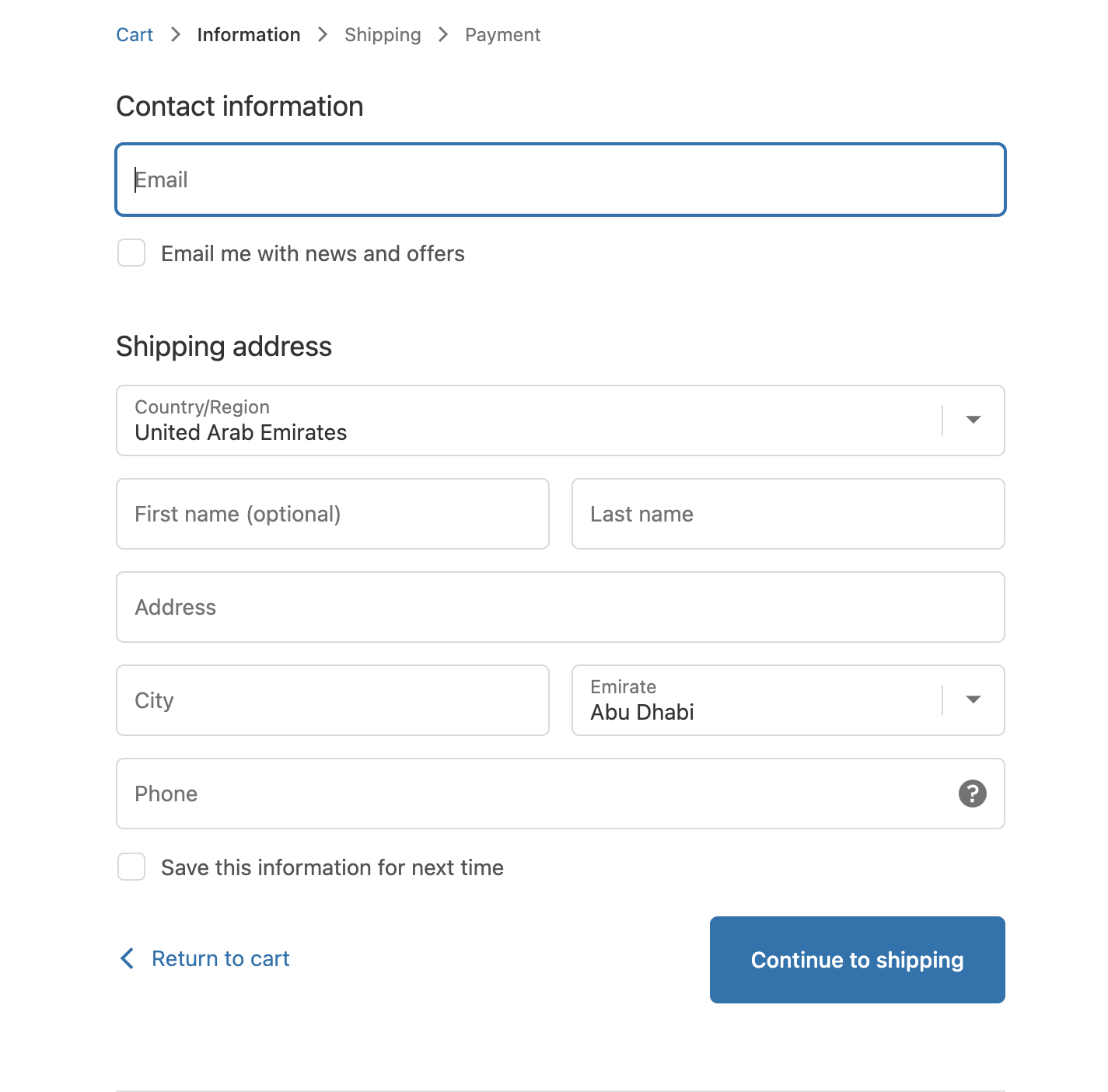
Customers must start a new session after being rejected or if they decide to cancel the session. For this customers need to change any contact details at the "Contact information" page.
### Redirection for Background Pre-Scoring Rejection
Tabby now redirects the customers to our internal rejection screens where we explain the reason and advise how to avoid this rejection if possible. Customers may see the general rejection explanation (can't be avoided), too high cart total and too low cart total rejections (can be skipped by adjusting the cart total).
### New Session is Required after Cancellation or Rejection
Customers must start a new session after being rejected or if they decide to cancel the session. For this customers need to change any contact details at the "Contact information" page.
 ### The Amount Paid by the Customer to Tabby Doesn't Match the Shopify Order Total
If customers update a related, but different Shopify session separately from the Shopify session used to place the Tabby order, the order totals between the Shopify and Tabby orders may not match, but the amount "Paid by customer" for the Shopify order should always match the Tabby order total. While not ideal, this is working as expected and designed. Care should be taken to only fulfill order line items paid for by the customer.
### Safari Browser for Web and Mobile Doesn't Render the Snippets.
If you can see Tabby promos at all other browsers except for Safari, please know that this is a limitation of iOS and MacOS. There is no available fix for this issue, but we are in the process of researching what components prevent us from proper snippet showing.
### Feedback and Support
If additional support is needed, email `partner@tabby.ai` / `partner@tabby.sa` (please include your Shopify store name and add your Account Manager in CC) for specific Tabby support.
Customer Tabby Support available at `help@tabby.ai` / `help@tabby.sa`
[https://community.shopify.com](https://community.shopify.com) is a good place for Shopify questions, support, and feedback, in addition to [https://help.shopify.com/](https://help.shopify.com/)
### The Amount Paid by the Customer to Tabby Doesn't Match the Shopify Order Total
If customers update a related, but different Shopify session separately from the Shopify session used to place the Tabby order, the order totals between the Shopify and Tabby orders may not match, but the amount "Paid by customer" for the Shopify order should always match the Tabby order total. While not ideal, this is working as expected and designed. Care should be taken to only fulfill order line items paid for by the customer.
### Safari Browser for Web and Mobile Doesn't Render the Snippets.
If you can see Tabby promos at all other browsers except for Safari, please know that this is a limitation of iOS and MacOS. There is no available fix for this issue, but we are in the process of researching what components prevent us from proper snippet showing.
### Feedback and Support
If additional support is needed, email `partner@tabby.ai` / `partner@tabby.sa` (please include your Shopify store name and add your Account Manager in CC) for specific Tabby support.
Customer Tabby Support available at `help@tabby.ai` / `help@tabby.sa`
[https://community.shopify.com](https://community.shopify.com) is a good place for Shopify questions, support, and feedback, in addition to [https://help.shopify.com/](https://help.shopify.com/)