> ## Documentation Index
> Fetch the complete documentation index at: https://docs.tabby.ai/llms.txt
> Use this file to discover all available pages before exploring further.

# POS Integration

## Integration Overview

This integration allows customers to pay using Tabby by scanning a QR code displayed on the POS terminal. The flow involves:

1. Creating a payment session
2. Displaying QR code on POS screen
3. Customer scans QR code and completes payment
4. Merchant receives payment confirmation

## Quick Reference

| **API Endpoint**                               | **Purpose**                | **Method** |
| ---------------------------------------------- | -------------------------- | ---------- |
| `/api/v2/checkout`                             | Create session and payment | POST       |
| `/api/v2/checkout/{id of session}/hpp_link_qr` | Get QR code image (PNG)    | GET        |
| `/api/v2/payments/{payment.id}`                | Retrieve payment status    | GET        |
| `/api/v2/checkout/{id of session}/cancel`      | Cancel session             | POST       |

| **Key Status Codes**            | **Description**                            |
| ------------------------------- | ------------------------------------------ |
| `CREATED`                       | Payment initiated, waiting for completion  |
| `AUTHORIZED`                    | Payment approved, not yet captured         |
| `CLOSED` with "captures" object | Payment approved and captured successfully |
| `REJECTED`                      | Payment declined                           |
| `EXPIRED`                       | Session/payment expired or cancelled       |

## Steps to Integrate Tabby with your POS

<Steps>
  <Step
    stepNumber={1}
    title={(
  <span>
    <a href="https://merchant.tabby.ai/">
      Register with Tabby
    </a>
    <span style={{ fontWeight: 'normal', fontSize: '0.9em' }}>
      &nbsp;(KSA: <a href="https://merchant.tabby.sa/">merchant.tabby.sa</a>)
    </span>
    <span style={{ fontWeight: 'normal' }}>
      &nbsp;and finish the application
    </span>
  </span>
)}
  />

  <Step
    stepNumber={2}
    title={(
  <span style={{ fontWeight: 'normal' }}>
    Collect the Test API Keys and Merchant codes from Tabby Merchant Dashboard or your Account Manager
  </span>
)}
  />

  <Step
    stepNumber={3}
    title={(
  <span>
    <span style={{ fontWeight: 'normal' }}>
      Set up the&nbsp;
    </span>
    <a href="/offline-payment-methods/pos-integration#create-session-and-payment-using-checkout-api">
      Tabby session creation from your terminal
    </a>
  </span>
)}
  />

  <Step
    stepNumber={4}
    title={(
  <span>
    <span style={{ fontWeight: 'normal' }}>
      Show a&nbsp;
    </span>
    <a href="/offline-payment-methods/pos-integration#show-qr-code">
      QR code on the POS screen
    </a>
  </span>
)}
  />

  <Step
    stepNumber={5}
    title={(
  <span>
    <span style={{ fontWeight: 'normal' }}>
      Set up&nbsp;
    </span>
    <a href="/offline-payment-methods/pos-integration#payment-processing">
      Payment status check
    </a>
    <span style={{ fontWeight: 'normal' }}>
      &nbsp;on your Backend. This can be done automatically by checking until the payment is completed or manually from the POS
    </span>
  </span>
)}
  />

  <Step
    stepNumber={6}
    title={(
  <span>
    <span style={{ fontWeight: 'normal' }}>
      Once the payment is complete -&nbsp;
    </span>
    <a href="/offline-payment-methods/pos-integration#print-a-receipt">
      print the receipt for the customer
    </a>
  </span>
)}
  />

  <Step
    stepNumber={7}
    title={(
  <span>
    <a href="/offline-payment-methods/pos-integration#testing-scenarios">
      Test your Integration,
    </a>
    <span style={{ fontWeight: 'normal' }}>
      &nbsp;contact Tabby Integrations Team in the Integration email thread to complete the testing process
    </span>
  </span>
)}
  />

  <Step
    stepNumber={8}
    title={(
  <span style={{ fontWeight: 'normal' }}>
    After successful testing, receive the Live API keys and deploy to production
  </span>
)}
  />
</Steps>

## Integration Flow

```mermaid theme={"dark"}
sequenceDiagram
    autonumber
    participant Customer
    participant POS as POS Terminal
    participant Provider as POS Backend
    participant Checkout as Tabby Checkout
    participant TabbyAPI as Tabby API

    Customer ->> POS: Request to pay with Tabby
    POS ->> Provider: Initiate payment
    Provider ->> TabbyAPI: POST /api/v2/checkout {amount, ...}
    TabbyAPI -->> Provider: Response {id of the session, status of the session,<br/> payment.id, web_url, qr_code}

    alt "status" of session == "created"
        Provider -->> POS: Return QR Code
        POS -->> Customer: Show QR Code
    else "status" of session == "rejected"
        Provider -->> POS: Return "Payment rejected"
        POS -->> Customer: Show failure screen
    end

    Customer ->> Checkout: Scans QR Code and go through payment steps
    loop Tabby checkout steps
    Checkout -->> Customer: Guide through required steps
    end

    opt Cashier cancels or timeout (300 seconds)
        POS -->> Provider: Cancel or timeout
        Provider -->> TabbyAPI: POST /api/v2/checkout/{id of session}/cancel
    end

    Provider ->> TabbyAPI: Check payment status<br/> (GET /api/v2/payments/{payment.id})
    TabbyAPI -->> Provider: {payment.status:<br/> AUTHORIZED | CLOSED | REJECTED | EXPIRED}
    Note over Provider,TabbyAPI: Or receive webhook with the same status

    alt payment.status ==<br/> "AUTHORIZED" or "CLOSED"
        Provider -->> POS: Payment successful
        POS -->> Customer: Show success screen, Print receipt
    else payment.status ==<br /> "REJECTED" or "EXPIRED"
        Provider -->> POS: Payment failed
        POS -->> Customer: Show failure screen
    end
```

## Create Session and Payment Using Checkout API

Call the <a href="https://docs.tabby.ai/api-reference/checkout/create-a-session" rel="noopener noreferrer" target="_blank">Create a session API</a>. The required payload parameters for the POS session:

```JSON theme={"dark"}
{
  "payment": {
    "amount": "string", // Up to 2 decimals for AED and SAR, 3 decimals for KWD, e.g. 100.00
    "currency": "string", // Use the ISO 4217 standard for defining currencies: AED, SAR, KWD
    "order": {
      "reference_id": "string" // Merchant's Order or Transaction ID to match with the Tabby Payment ID
    },
    "description": "string", // Unique terminal id
    "attachment": {
            "body": "{\"latitude\": latitude of the terminal as float,\"longitude\": longitude of the terminal as float,\"timestamp\": \"timestamp of the purchase in UTC, displayed in ISO 8601 datetime format\"}", // Example: "\"latitude\":24.4763,\"longitude\":54.3209,\"timestamp\": \"2026-02-27T14:35:10.123Z\""
            "content_type": "application/vnd.tabby.v1+json"
        },
  },
  "merchant_code": "string" // Merchant's branch code or MID
}
```

### Eligibility Check

As a response you receive one of the two session statuses - <code className="text-blue-600 dark:text-blue-300">"created"</code> or <code className="text-blue-600 dark:text-blue-300">"rejected"</code>:

* if the session status is <code className="text-blue-600 dark:text-blue-300">"created"</code> - save the **id of the session** (will be required for cancellation step) and **payment.id** (will be required for payment status check and refund steps) received in the response:

```
"status": "created"
"id": "string" // ID of the session
"payment"."id":"string" // ID of the payment
"configuration"."available_products.installments[0].qr_code": "string" // QR code link which you can use to get the image of the QR code and show it on the POS screen
"configuration"."available_products.installments[0].web_url": "string" // Session link, if you want to use it to generate your own QR code
```

* if the session status is <code className="text-blue-600 dark:text-blue-300">"rejected"</code> - show the Payment failure screen and offer the customer an alternative payment method. Please, do not proceed with any further steps with Tabby. The rejection might be related to order amount being too high, disabled branch code, or other reasons. The response payload will contain the following:

```
"status": "rejected"
```

## Show QR Code

When the session has status <code className="text-blue-600 dark:text-blue-300">"created"</code> you will receive two links in the response. Use either of them to show the QR Code on the POS screen:

| **Response field**                                         | **What it returns**                                              | **When to use**                                                                                                                        |
| ---------------------------------------------------------- | ---------------------------------------------------------------- | -------------------------------------------------------------------------------------------------------------------------------------- |
| `configuration.available_products.installments[0].qr_code` | A link to a **ready-to-display QR code image** (PNG, 200×200 px) | **Recommended.** Fetch the image with a plain HTTP GET and render it directly on the POS screen — no QR generation library is required |
| `configuration.available_products.installments[0].web_url` | The Tabby Checkout session link                                  | Generate your own QR code from this link if you need a custom size or design                                                           |

### Using the Ready-Made QR Image

The <code className="text-blue-600 dark:text-blue-300">qr\_code</code> link points to the <code className="text-blue-600 dark:text-blue-300">GET /api/v2/checkout/\{id of session}/hpp\_link\_qr</code> endpoint, which responds with a black-and-white PNG image (<code className="text-blue-600 dark:text-blue-300">Content-Type: image/png</code>, 200×200 px, under 1 KB):

* Use the link **exactly as returned** in the session response — do not construct or modify it manually, all required query parameters are already included.
* The request requires **no authentication headers**, so the POS application can fetch the image directly, without proxying it through your backend.
* Render the PNG in a native image component (for example, an <code className="text-blue-600 dark:text-blue-300">ImageView</code> on Android-based POS terminals) — no WebView or browser is needed.

### QR Code Display Recommendations

* **Size.** Display the QR code at least **3×3 cm** on the physical screen. When upscaling the 200×200 px image, use integer scale factors with nearest-neighbor (non-smoothing) scaling so the QR modules stay sharp. If your framework only supports smooth scaling, generate your own QR code from <code className="text-blue-600 dark:text-blue-300">web\_url</code> at the native resolution instead.
* **One code per payment.** The QR code is unique for each payment session. Never cache or reuse the image between payments — fetch a fresh one for every new session.
* **Fallback.** If the image fails to load (for example, due to a network error), create a new payment session and show the QR code from the <code className="text-blue-600 dark:text-blue-300">qr\_code</code> link of the new response.

## Payment Processing

Once QR Code is shown, check the payment status using the <a href="https://docs.tabby.ai/api-reference/payments/retrieve-a-payment" rel="noopener noreferrer" target="_blank">Retrieve Payment API call</a>. We recommend calling the Retrieve API **every 5 seconds** until a terminal status is received. Alternatively, you can add a **“Check status”** button on the POS terminal to manually check this.

The following statuses can be received:

* <code className="text-blue-600 dark:text-blue-300">CREATED</code> - the payment has not been completed yet, wait for it to change to one of the terminal statuses.
* <code className="text-blue-600 dark:text-blue-300">AUTHORIZED</code> or <code className="text-blue-600 dark:text-blue-300">CLOSED</code> - the payment is successful, mark order as successful, print a receipt.
* <code className="text-blue-600 dark:text-blue-300">REJECTED</code> or <code className="text-blue-600 dark:text-blue-300">EXPIRED</code> - the payment is not successful. Ask the customer to pay with a different payment method.

### Cancel a Payment

A request to cancel a payment is available in the Postman collection.

You can cancel a payment in two cases:

1. The cashier presses the “Cancel” button on the POS.
2. Automatically, after a timeout. The **recommended** period is **300 seconds**, but the timeout should **never be less than 180 seconds**.

The payment can only be canceled if its status is <code className="text-blue-600 dark:text-blue-300">CREATED</code>. Once canceled - the status will change to <code className="text-blue-600 dark:text-blue-300">EXPIRED</code>.

If the payment has already been successful, attempting to cancel it will return the following error: <code className="text-blue-600 dark:text-blue-300">400 Bad Request</code>

```JSON theme={"dark"}
{
  "status": "error",
  "errorType": "bad_data",
  "error": "session is finalized"
}
```

In this case check the payment status via the <a href="https://docs.tabby.ai/api-reference/payments/retrieve-a-payment" rel="noopener noreferrer" target="_blank">Retrieve Payment API call</a> and verify the status is <code className="text-blue-600 dark:text-blue-300">AUTHORIZED</code> or <code className="text-blue-600 dark:text-blue-300">CLOSED</code>. Then show a success screen, print a receipt and proceed with the order.

<Note>
  The Cancel API does not refund payments and can only be used to expire not finalised sessions. Once the payment receives one of the terminal statuses - <code className="text-blue-600 dark:text-blue-300">AUTHORIZED</code>, <code className="text-blue-600 dark:text-blue-300">CLOSED</code>, <code className="text-blue-600 dark:text-blue-300">REJECTED</code> or <code className="text-blue-600 dark:text-blue-300">EXPIRED</code> - the session cannot be cancelled.
</Note>

### Refund a Payment

You can process <a href="/pay-in-4-custom-integration/payment-processing#payment-refund" rel="noopener noreferrer" target="_blank">a Full or Partial Refund</a>. Call <a href="https://docs.tabby.ai/api-reference/payments/refund-a-payment" rel="noopener noreferrer" target="_blank">Refund API</a> for a specific payment.id with the desired amount. You can find the <code className="text-blue-600 dark:text-blue-300">payment.id</code> by matched <code className="text-blue-600 dark:text-blue-300">payment.order.reference\_id</code> in your OMS.

You can also process a refund from the Tabby Merchant Dashboard.

<Note>
  Only payment in status <code className="text-blue-600 dark:text-blue-300">CLOSED</code> with a captured amount present in the <code className="text-blue-600 dark:text-blue-300">"captures":\[]</code> array of objects can be refunded.<br />
  *On Merchant Dashboard such payment will have status <code className="text-blue-600 dark:text-blue-300">CAPTURED</code>.*
</Note>

## Print a Receipt

Show a success screen and print a receipt. The receipt data can be used to identify the order and payment, and (optionally) initiate a refund if your POS system provides this functionality.

| Receipt data template           |
| ------------------------------- |
| Merchant Order / Transaction ID |
| Date and Time                   |
| Tabby logo                      |
| Tabby Payment ID (optional)     |
| Merchant name (optional)        |

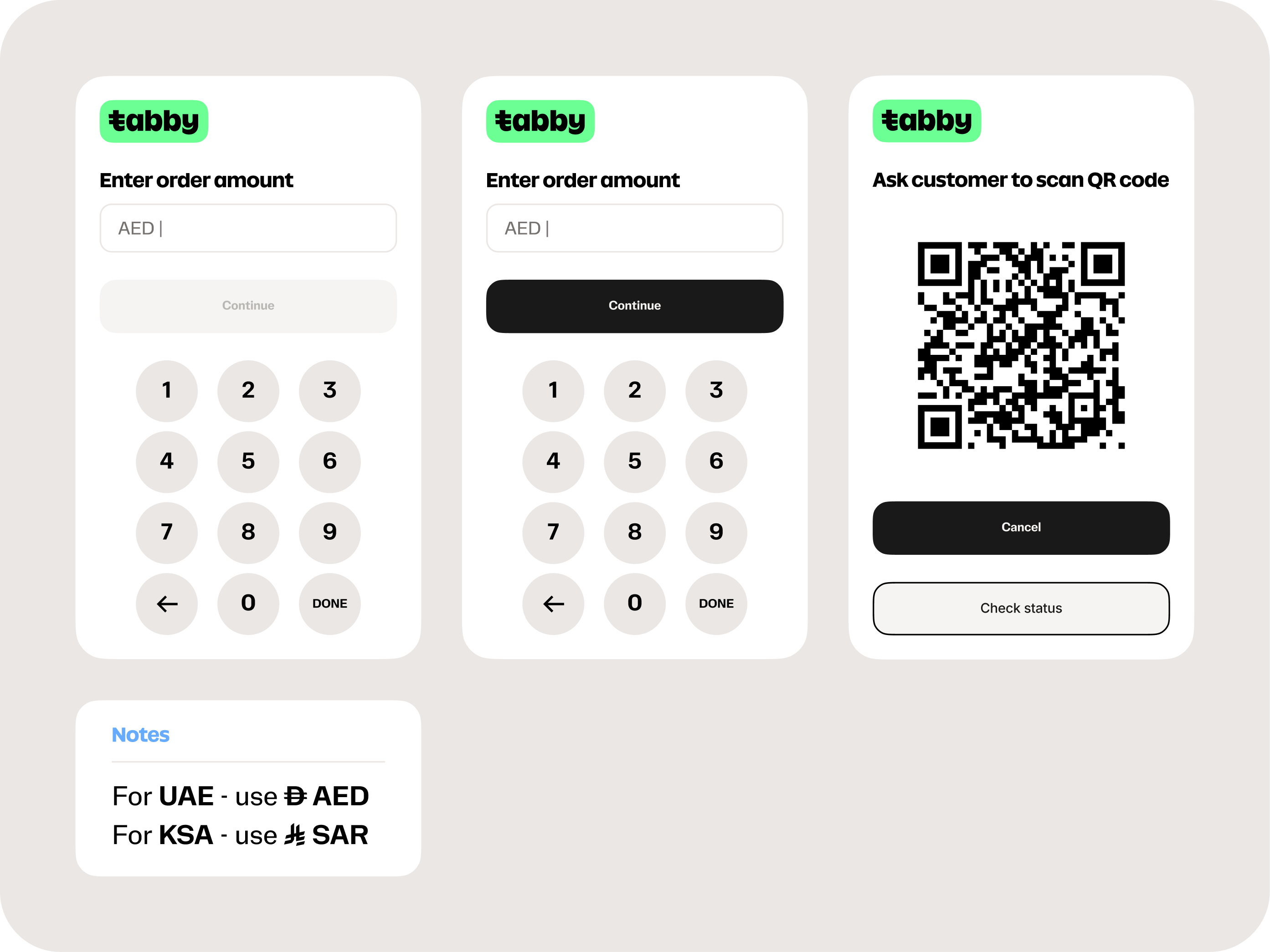
## Recommended Designs

<div className="product-shot-figure">
  <img className="product-shot" alt="Native Screen POS Journey" src="https://mintcdn.com/tabby-5f40add6/Mdf68_F2fROQ9Weu/images/pos-designs.png?fit=max&auto=format&n=Mdf68_F2fROQ9Weu&q=85&s=e239e3870ae9ec0dcbb319d27dbbac9e" width="887" height="641" data-path="images/pos-designs.png" />

  <p className="product-shot-caption">Native Screen POS Journey</p>
</div>

## Testing Scenarios

Kindly verify that your integration can handle all listed below scenarios.

### 1. Payment Success

**Testing Steps:**

1. Choose Tabby on the POS terminal and enter the payment amount, press Enter.
2. Show the QR code on the POS terminal for the customer to scan.
3. On Tabby Checkout Page enter credentials:

```
Positive flow:
UAE: otp.success@tabby.ai, phone: +971500000001
KSA: otp.success@tabby.ai, phone: +966500000001
Kuwait: otp.success@tabby.ai, phone: +96590000001
```

4. Complete the payment using <code className="text-blue-600 dark:text-blue-300">OTP:8888</code> on Tabby Checkout page.
5. Verify that the successful status is received.

**Expected Results:**

1. Session creation response has status <code className="text-blue-600 dark:text-blue-300">"created"</code>, and a QR code is shown successfully on the POS screen.
2. Tabby Checkout Page opens from the QR code.
3. Credentials are entered.
4. The success Tabby screen appears.
5. Payment is successful and captured:
   * on Merchant Dashboard payment status is <code className="text-blue-600 dark:text-blue-300">CAPTURED</code>
   * via a <a href="https://docs.tabby.ai/api-reference/payments/retrieve-a-payment" rel="noopener noreferrer" target="_blank">Retrieve Payment API call</a> response Payment status is <code className="text-blue-600 dark:text-blue-300">CLOSED</code>, captured amount is present in the <code className="text-blue-600 dark:text-blue-300">"captures":\[]</code> array of objects.

<Warning>
  If a payment status remains <code className="text-blue-600 dark:text-blue-300">NEW</code> on the Merchant Dashboard or <code className="text-blue-600 dark:text-blue-300">AUTHORIZED</code> via Retrieve Payment API call - kindly contact your Tabby Account manager or `partner@tabby.ai` / `partner@tabby.sa` to update auto-capture settings.
</Warning>

### 2. Tabby Unavailable / API Error Handling

**Testing Steps:**

1. Choose Tabby on the POS terminal and enter a payment amount.
2. Simulate one of the following failure scenarios on the <a href="https://docs.tabby.ai/api-reference/checkout/create-a-session" rel="noopener noreferrer" target="_blank">Create a session API</a> call:
   * **No response from Tabby** - network timeout or loss of connectivity.
   * **Error response from Tabby** - any <code className="text-blue-600 dark:text-blue-300">4xx</code> or <code className="text-blue-600 dark:text-blue-300">5xx</code> status code.
   * **Incomplete response** - session is received but <code className="text-blue-600 dark:text-blue-300">configuration.available\_products.installments\[0].qr\_code</code> and <code className="text-blue-600 dark:text-blue-300">web\_url</code> are not present.
3. Observe POS behavior while the terminal attempts to create the session and display a QR code.
4. Select an alternative payment method on the POS terminal to complete the order.

**Expected Results:**

1. Tabby is present among payment methods on the POS terminal.
2. Session creation does not complete successfully - the POS receives no response, an error status, or an incomplete payload.
3. No QR code is shown; a failure screen or error message is displayed to the cashier, prompting to retry or select an alternative payment method. No payment is created in Tabby.
4. The order can be completed via another payment method on the POS terminal.

### 3. Payment Cancellation

**Testing Steps:**

1. Choose Tabby on the POS terminal and enter the payment amount.
2. Show the QR code on the POS terminal for the customer to scan.
3. Click cancel (Cross icon) on Tabby Checkout page (you may also cancel the session from your POS terminal).

**Expected Results:**

1. Tabby is present among payment methods on POS terminal.
2. Session creation response has status <code className="text-blue-600 dark:text-blue-300">"created"</code>, and a QR code is shown successfully on the POS screen.
3. Tabby Checkout Page opens, a session is cancelled. On checking Payment Status via <a href="https://docs.tabby.ai/api-reference/payments/retrieve-a-payment" rel="noopener noreferrer" target="_blank">Retrieve Payment API call</a> it should be <code className="text-blue-600 dark:text-blue-300">EXPIRED</code> status. A new session can be created from POS terminal.

<Note>
  By default, Tabby session expires after **20 minutes** since creation and customer is not able to continue the session. This **session expiry timeout** can be reduced by the request from the Merchant side to your assigned business manager in the Integrations thread.
</Note>

### 4. Payment Failure

**Testing Steps:**

1. Choose Tabby on the POS terminal and enter the payment amount.
2. Show the QR code on the POS terminal for the customer to scan.
3. On Tabby Checkout Page enter credentials:

```
Negative flow:
UAE: otp.rejected@tabby.ai, phone: +971500000001
KSA: otp.rejected@tabby.ai, phone: +966500000001
Kuwait: otp.rejected@tabby.ai, phone: +96590000001
```

4. Finish the payment using <code className="text-blue-600 dark:text-blue-300">OTP:8888</code> on Tabby Checkout page.
5. Verify the payment status via Retrieve Payment API.

**Expected Results:**

1. Tabby is present among payment methods on POS terminal.
2. Session creation response has status <code className="text-blue-600 dark:text-blue-300">"created"</code>, and a QR code is shown successfully on the POS screen.
3. Tabby Checkout Page opens, credentials are entered.
4. The rejection screen with the message 'We can’t approve this purchase' appears.
5. On checking Payment Status via <a href="https://docs.tabby.ai/api-reference/payments/retrieve-a-payment" rel="noopener noreferrer" target="_blank">Retrieve Payment API call</a> it should be <code className="text-blue-600 dark:text-blue-300">REJECTED</code>.

## Postman Collection

1. Download the JSON file and import it into Postman.
2. Set your <code className="text-blue-600 dark:text-blue-300">base\_url</code>, <code className="text-blue-600 dark:text-blue-300">secret\_key</code>, <code className="text-blue-600 dark:text-blue-300">merchant\_code</code>, and <code className="text-blue-600 dark:text-blue-300">currency</code> in Collection Variables. See <a href="/api-reference/overview#base-urls">Base URLs</a> for regional domains.

<Card horizontal color="#00A462" href="/custom-pl-pos.json" icon="file-arrow-down" iconType="light" rel="noopener noreferrer" target="_blank">
  <span style={{ textDecoration: 'none', fontWeight: 'bold' }}>
    Payment Links / POS Collection
  </span>
</Card>

<Note>
  This API collection is used for both POS Integration and Custom Payment Links integration and includes all the POS steps.
</Note>
