
This page describes the installation process for Tabby Catalogue in Shopify.
- In Tabby Merchant Dashboard go to the “Marketing” tab;
- Сheck the status of your store. It should be published to start the item uploading process;
- Once the store is published, click the “Upload products” button and choose Shopify;
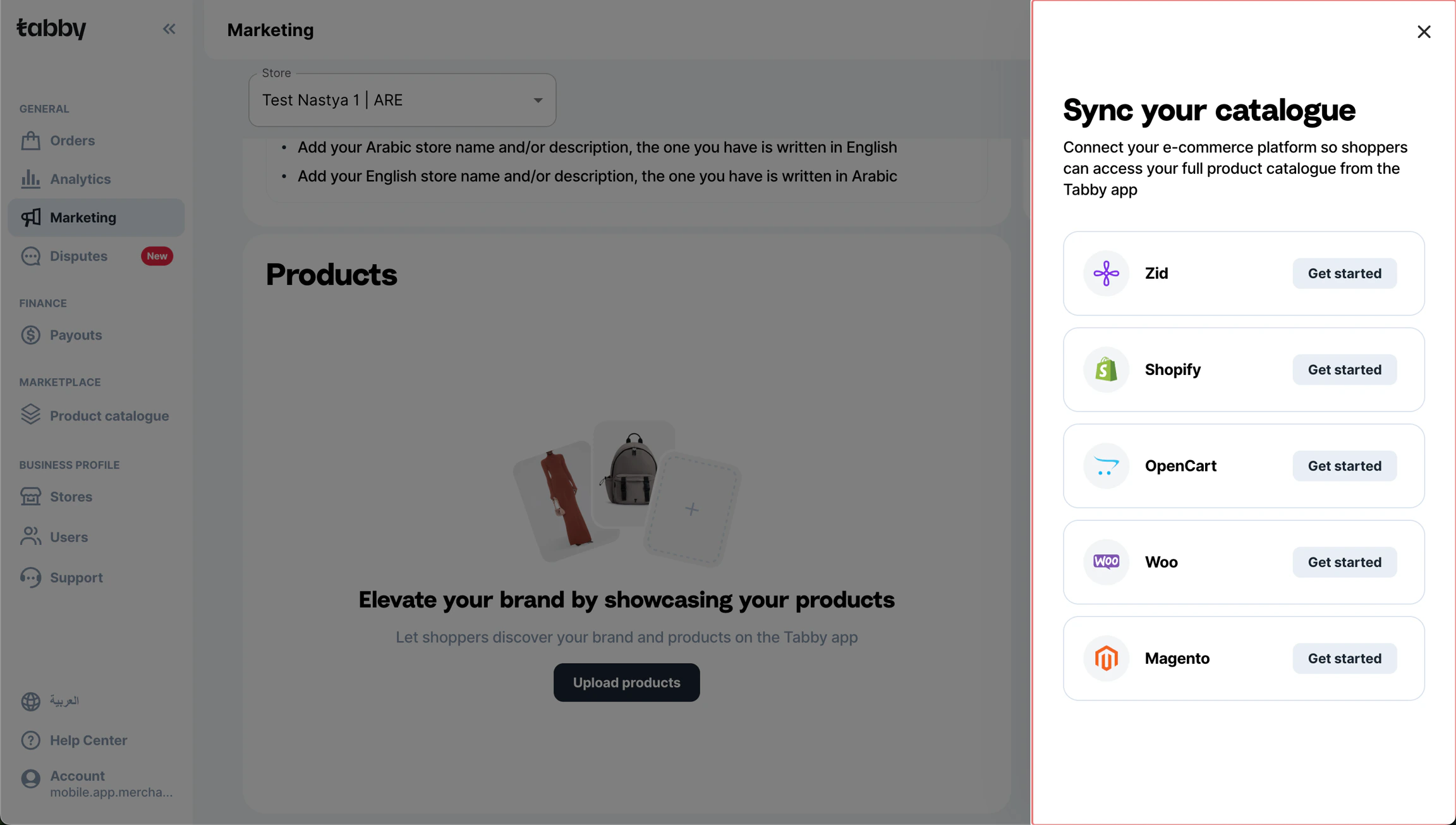
Shopify Product Catalogue in Dashboard
- Wait for the redirection here to the documentation and installation link;
- In Shopify App Store click “Install” and choose a necessary store from the list of suggested stores;
- You will be redirected to your Shopify store’s admin panel and requested to install the application with the following permissions:
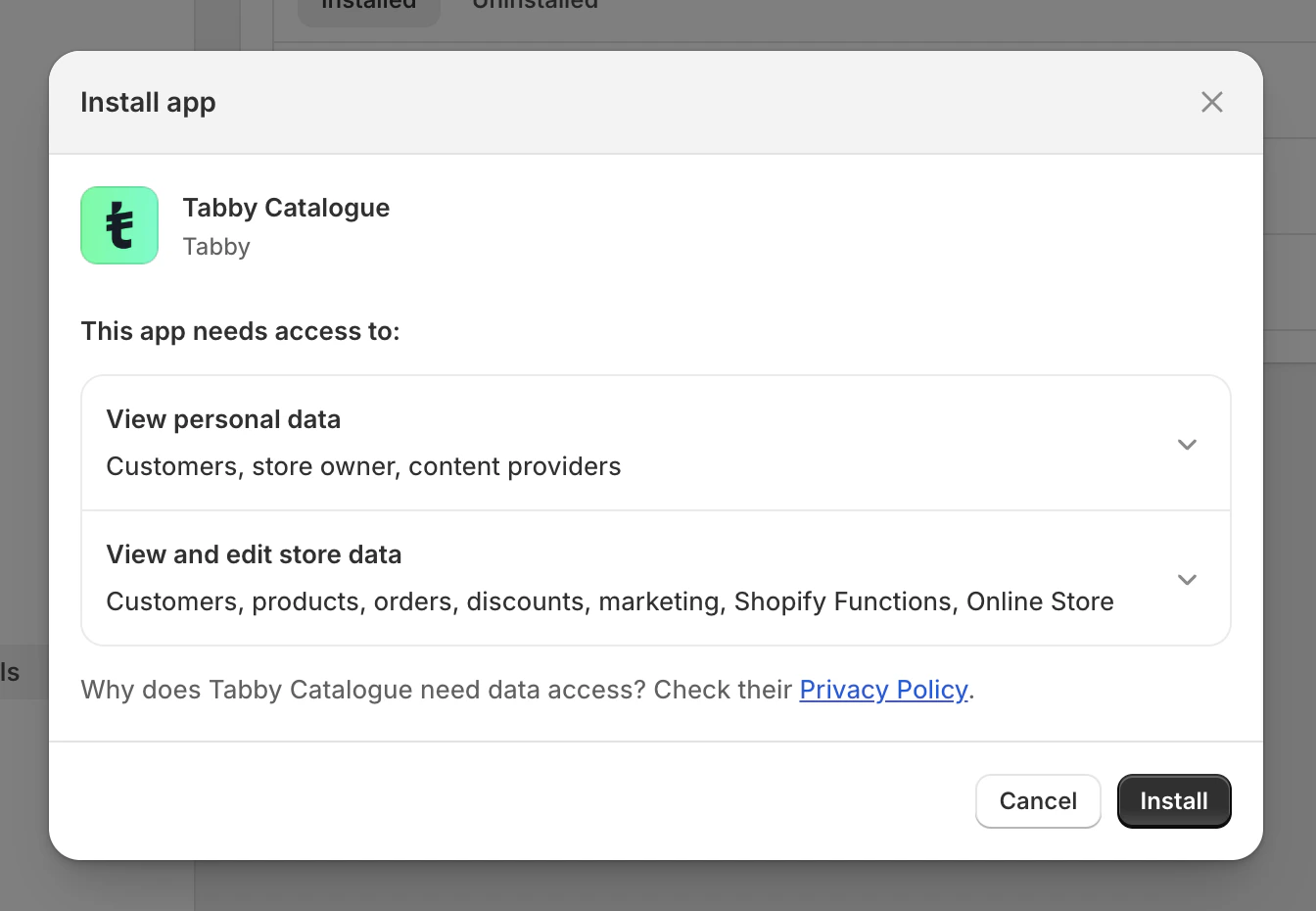
App Permissions
- Click “Connect” and in the appearing pop-up enter the secret key of your store (you can find it in the Tabby Payment application or in the Merchant Dashboard “Integration” tab), as the app is not connected by default.
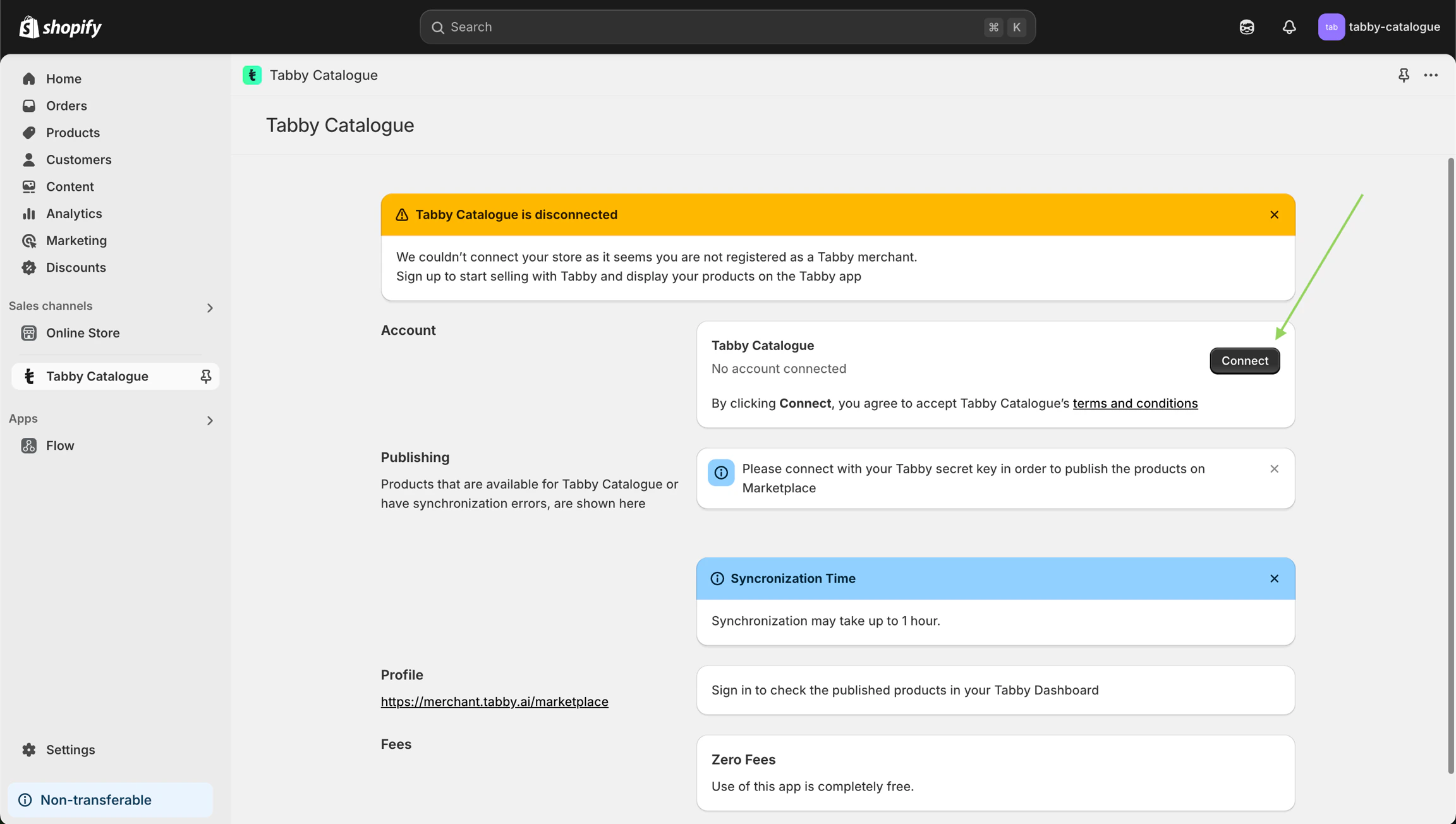
Connection Step
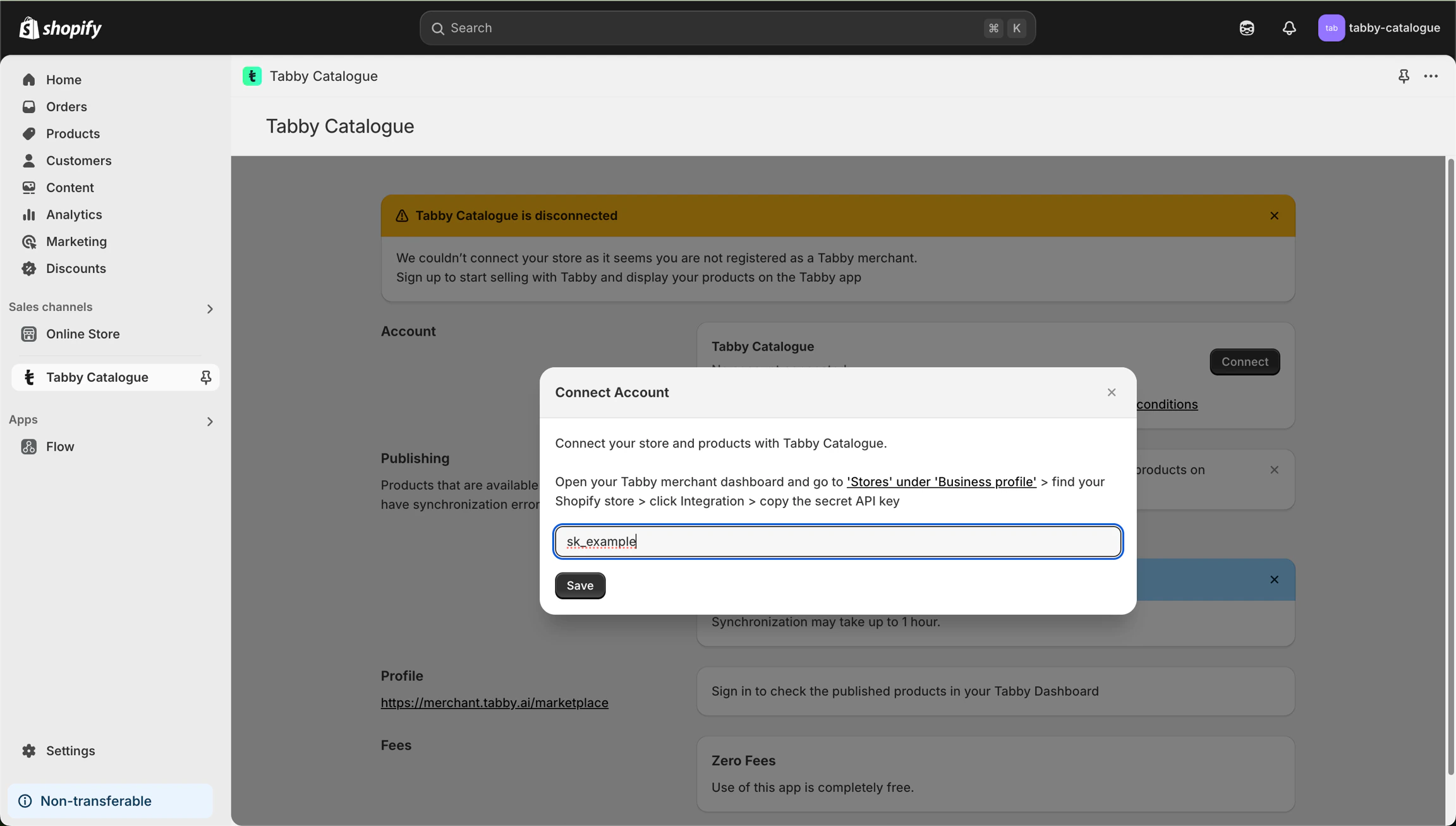
Key Installation
- Once you connect the application with the secret key, you will observe the “Publish” button;
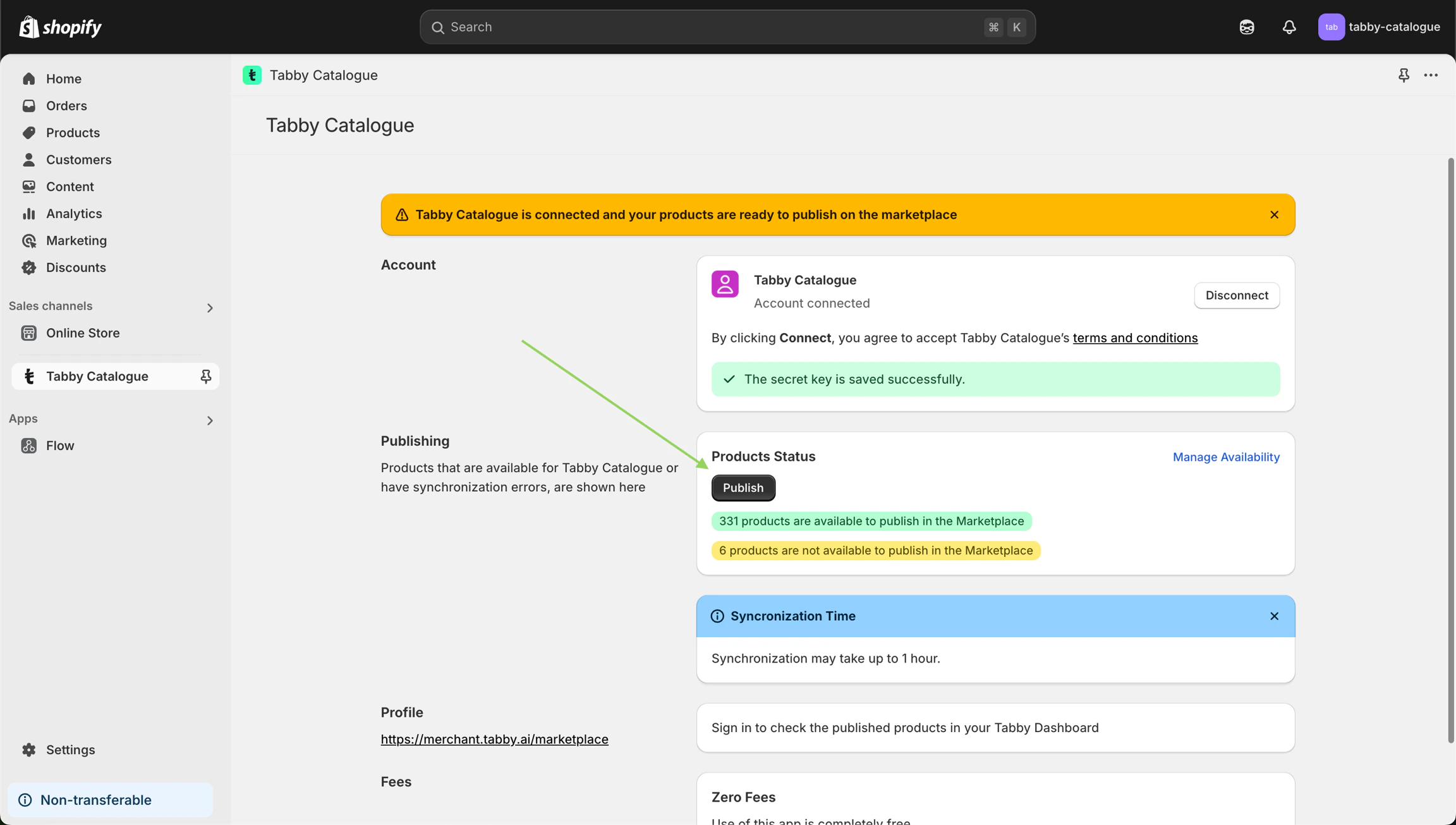
Publishing Step
- After publishing, you are ready to use Tabby Catalogue, the synchronization starts immediately.